
➡️ Upcoming classes at Iffy Books
With a bit of technical knowledge and a bit of music taste, you can DJ a party! It feels great to help your friends have fun.
You may have seen DJs using expensive controller units with large record-like platters. Some DJs use “control vinyl” discs on real turntables to control Serato or VirtualDJ. If you’ve looked over a DJ’s shoulder, you’ve probably seen them using fairly expensive hardware and/or software.
Well, now there’s Mixxx! It’s a free and open source DJ program that runs beautifully on macOS, Linux, and Windows. It supports a wide range of DJ controller devices, and it works with just about any audio format you can throw at it.
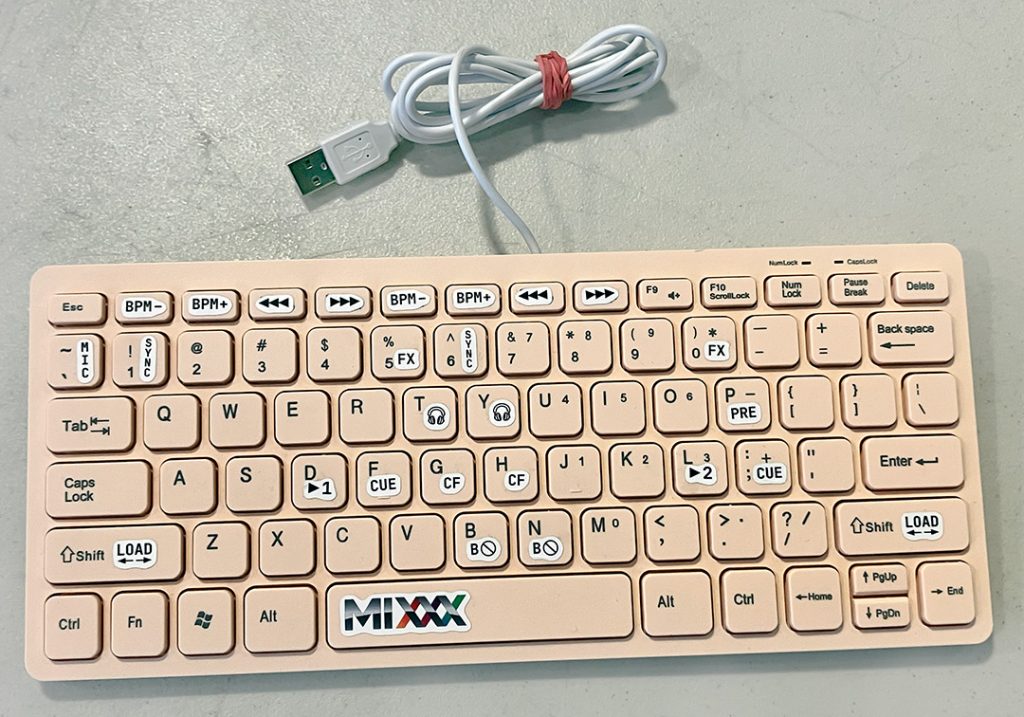
DJ controllers have gotten cheaper in recent years. But if you want to get started without one, you can use a regular QWERTY keyboard! We recommend printing the following labels (4″x4″) on sticker paper, or you can get a vinyl sticker version from Iffy Books.

Unfortunately, Bluetooth speakers and headphones don’t work well for DJing. Sending audio via Bluetooth always introduces a slight latency, or delay which makes it tough to get the timing right. If you don’t have wired headphones or speakers, you can get started with your computer speakers.
❏ Find a USB QWERTY keyboard with physical function keys: F1, F2, F3, etc.
❏ Print a sticker sheet using the graphic above (4″x4″), or get a pre-cut vinyl sticker from Iffy Books.
❏ Apply stickers to your keyboard like so:
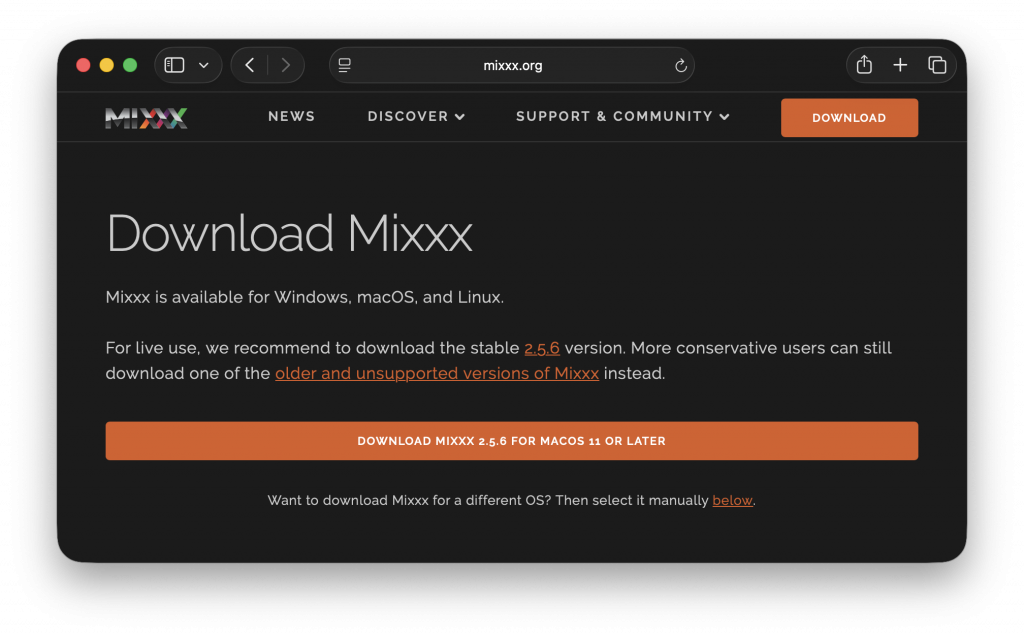
❏ Download and install Mixx from https://mixxx.org/download.
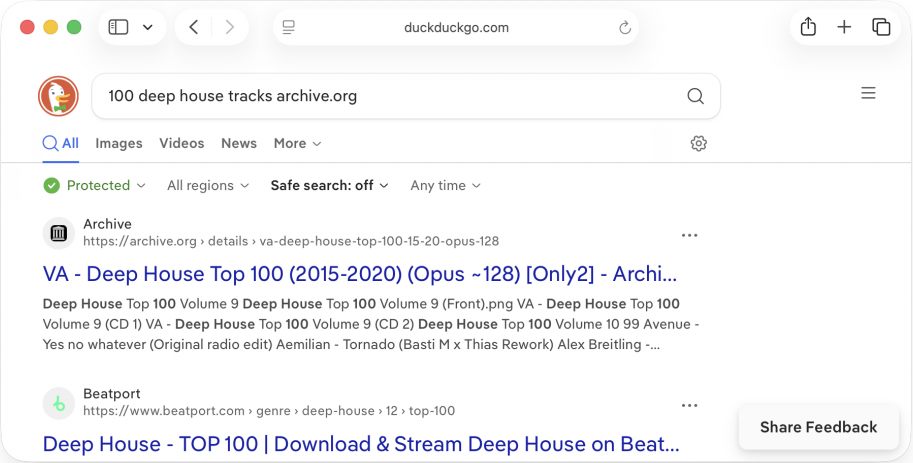
❏ Do a web search for the phrase 100 deep house tracks archive.org (without quotes) and click the first link.
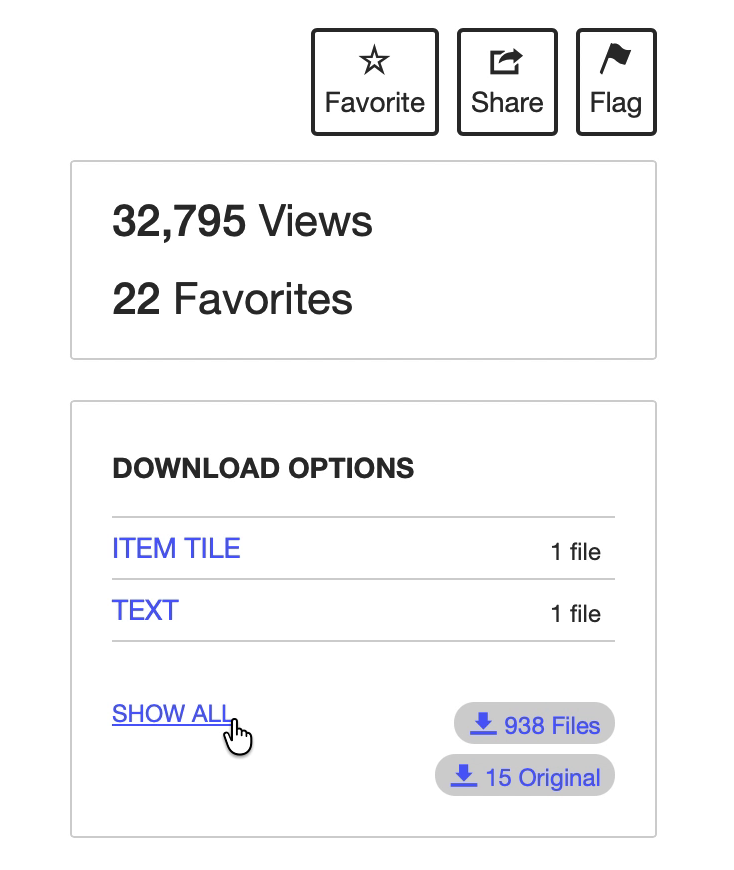
❏ Click the SHOW ALL link on the right side of the page.
❏ Click on any directory (Vol. 1–10) and you’ll see a list of .opus audio files. Download 10 tracks from the collection, more or less at random.
Note: These files are compressed at 128 Kbps, so the quality is lower than DJs typically use. But they’re perfect for practice.
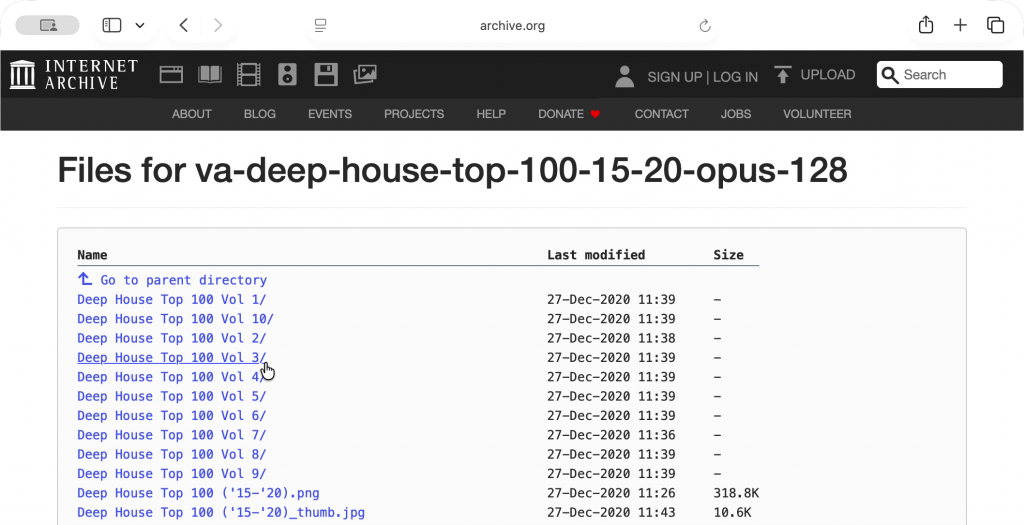
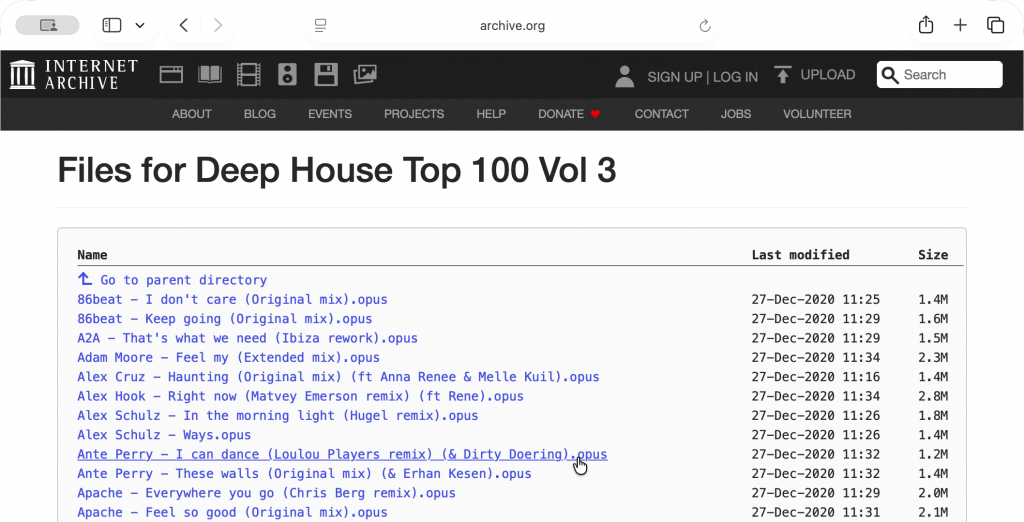
❏ Create a new directory called DJ_Tracks and move the .opus files you just downloaded to it.
❏ Open the Mixx preferences (Cmd+, or Ctrl+,). Under the Sound Hardware submenu, set the Engine Clock option to Rubberband R3 (near-hi-fi quality).
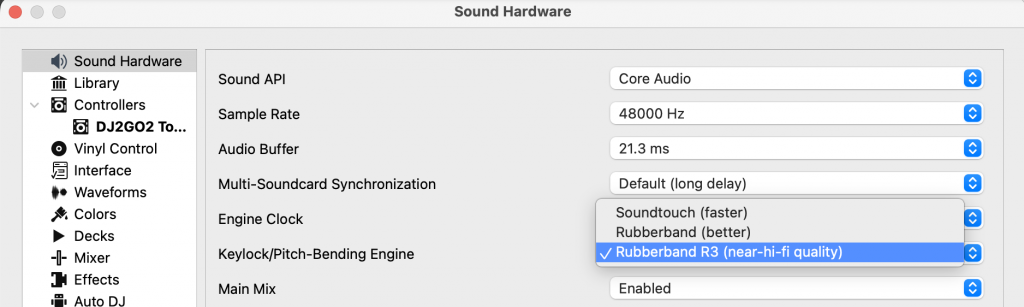
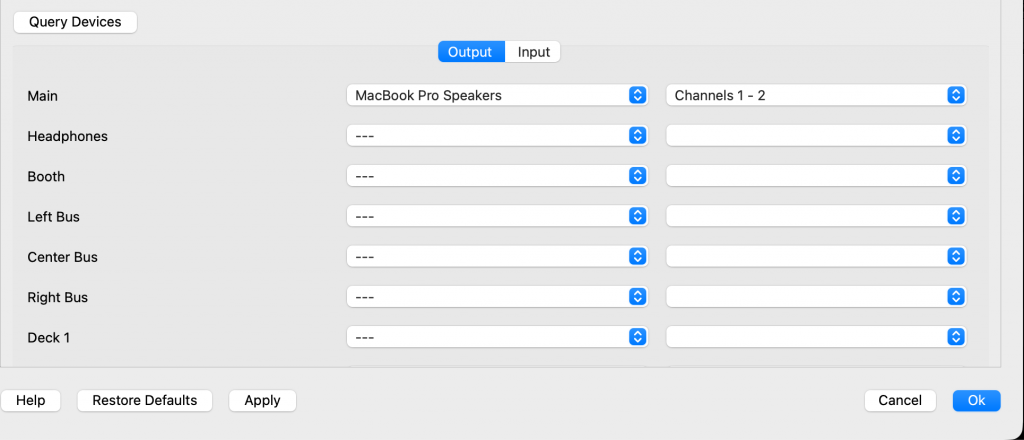
❏ Next, select an audio output device from the dropdown menu next to Main. You can use your laptop speakers for now, or plug in a pair of headphones. When you’re done, click Apply.
❏ Go to the Library submenu in the left column. Check the box next to Rescan directories on start-up. Next, click Add and select the DJ_Tracks directory you created earlier. Select any other directories on the list and click Remove.
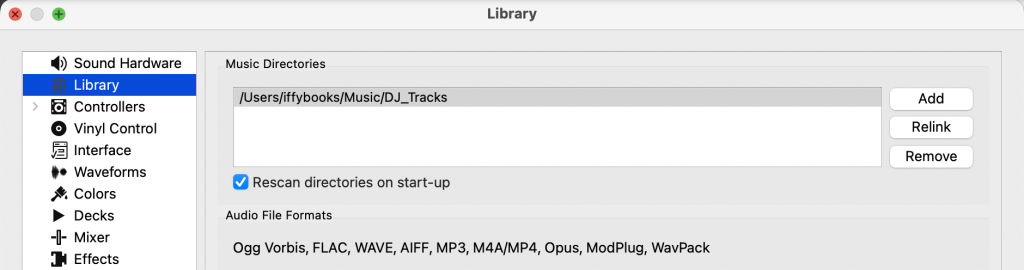
❏ Click OK to exit the preferences.

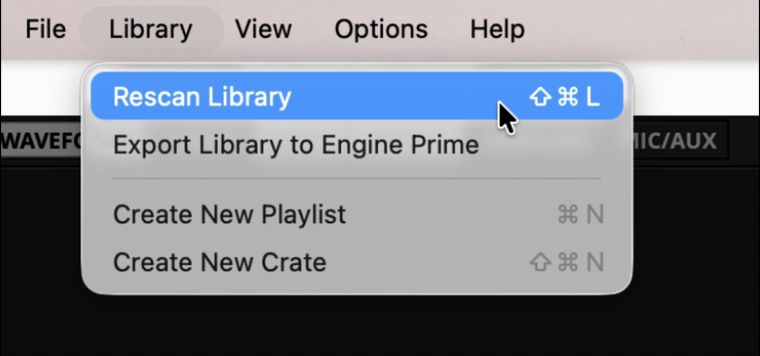
❏ In the menu bar, go to Library > Rescan Library to load the files in your DJ_Tracks directory into Mixx. You can also use Cmd+Shift+L or Ctrl+Shift+L.
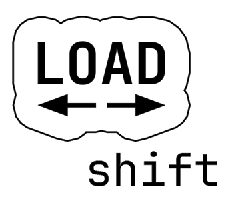
❏ Use the up and down arrows to select a track, then press Shift + left arrow to load it into deck 1. Mixxx will detect the track’s tempo in beats per minute (BPM) and its key, which now appear beside it in the library window.
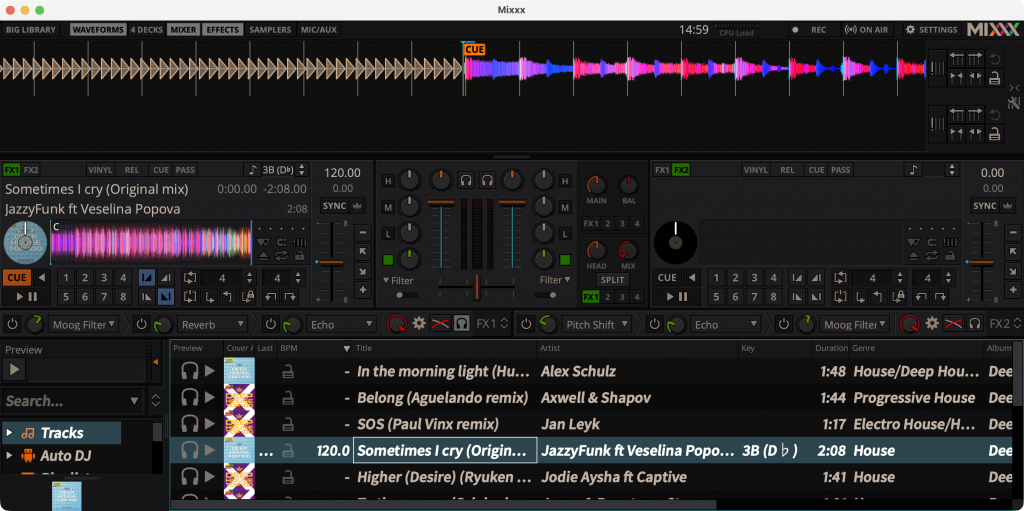
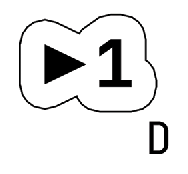
❏ Press deck 1 play ▶ (D) to start the track.
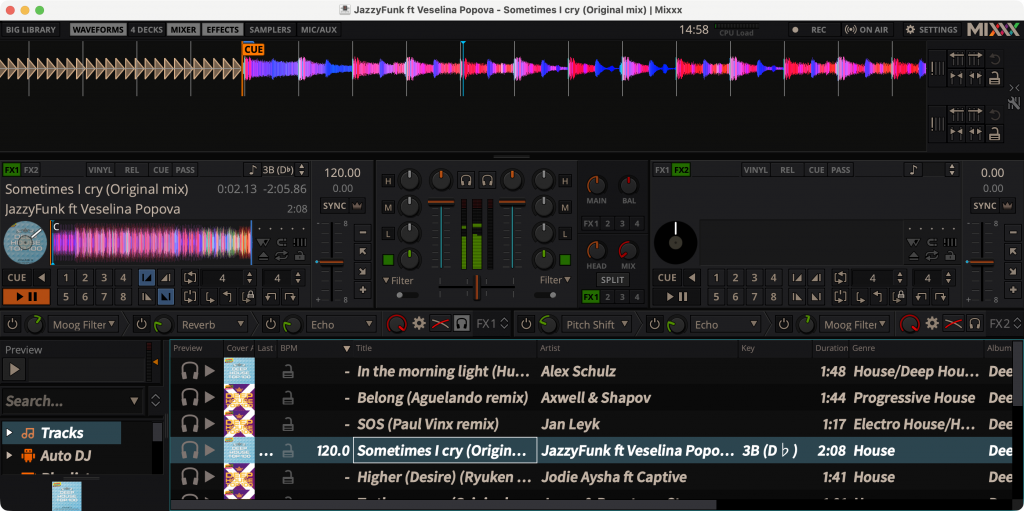
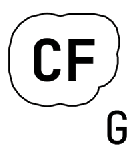
❏ The CF keys (G and H) control the crossfader, represented by a horizontal slider in the middle of the window. Press the left CF key (G) several times to slide the crossfader all the way left. Press Shift simultaneously to make a smaller adjustment.
When the crossfader is centered, you can hear sound from both decks equally. When it’s all the way left you’ll only hear deck 1, and when it’s all the way right you’ll only hear deck 2.

❏ Use the up and down arrows to select a track from the library. Then press Shift + right arrow to load it into deck 2.
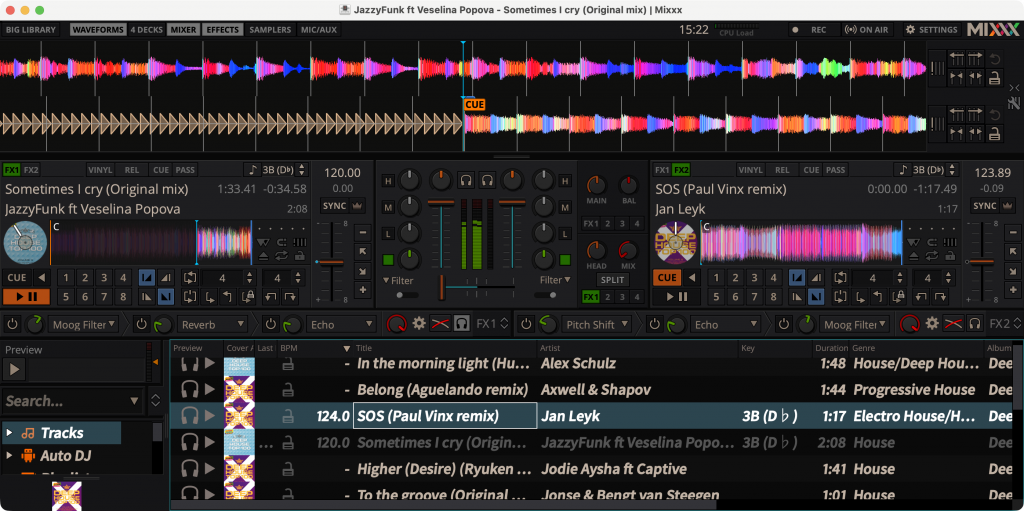
❏ Tap sync (6) to make the tempo of track 2 match track 1.
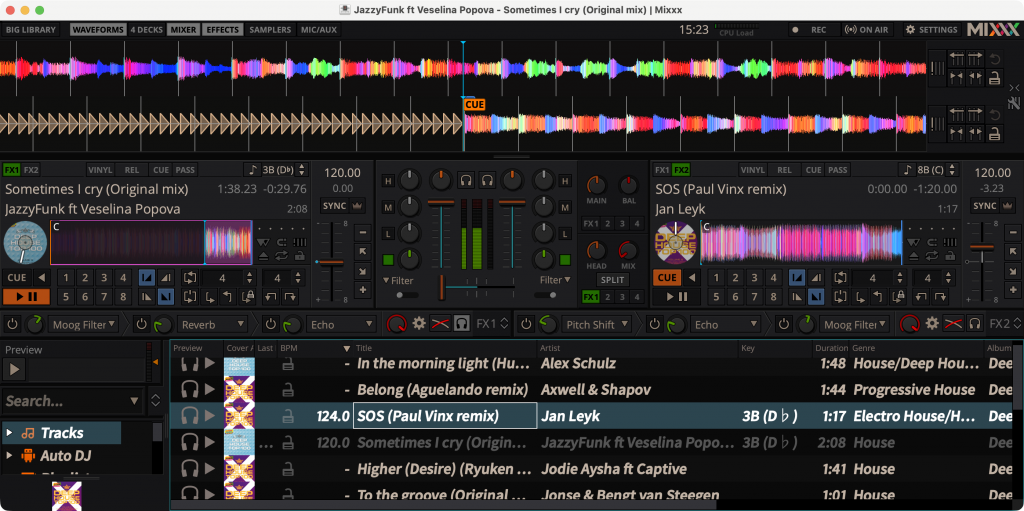
❏ Wait until a natural transition point in the track, typically the end of a 32-bar phrase. At the moment the new phrase begins, press deck 2 play ▶ (L) to start the track in deck 2. The waveform for deck 2 will start moving, but you won’t hear anything because the crossfader is all the way left.
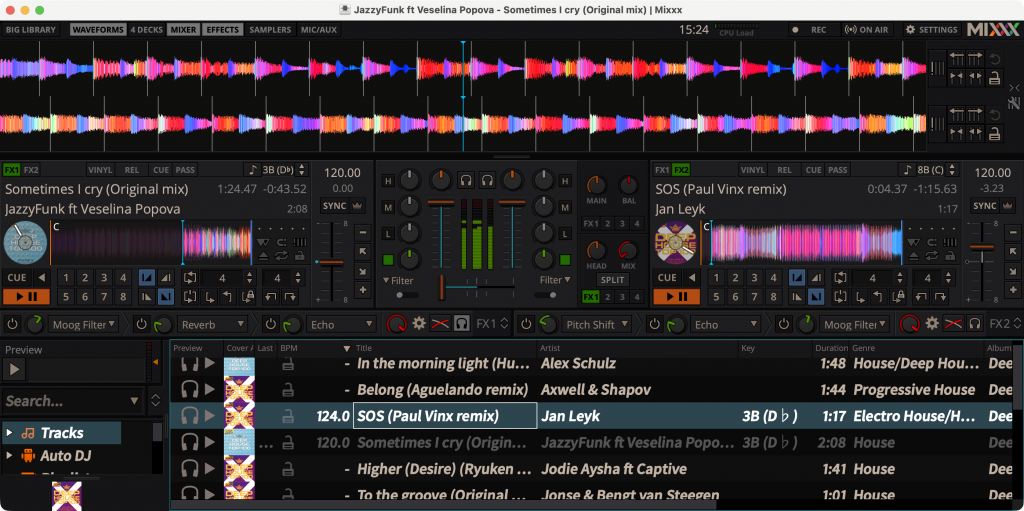
❏ The keys labeled ◀◀◀ (F7) and ▶▶▶ (F8) adjust a track’s tempo temporarily. If two tracks’ beats are slightly misaligned, you can use these to nudge one into place. Press Shift simultaneously to make a smaller adjustment.
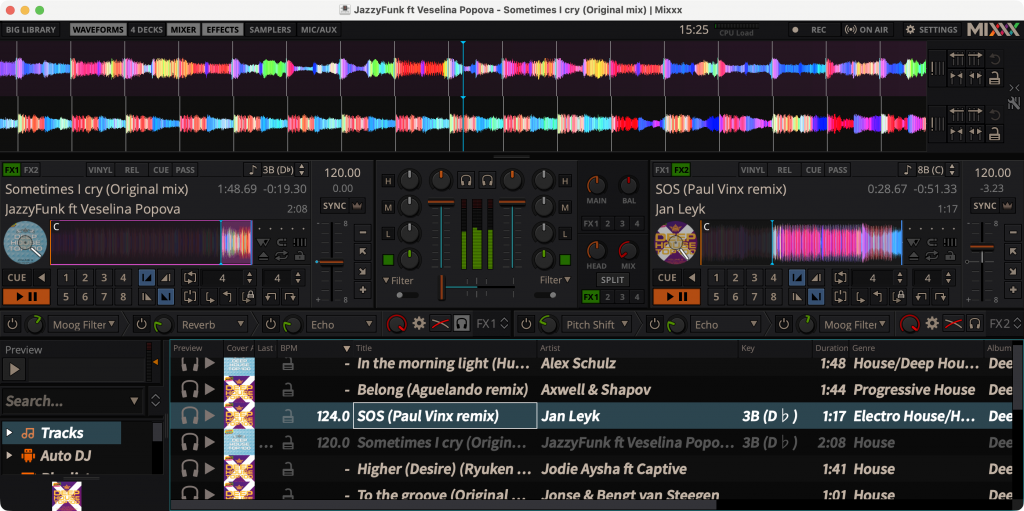
❏ Press the right CF key (H) several times, transitioning gradually to the track in deck 2.


❏ Once the crossfader is all the way to the right, press deck 1 play ▶ (D) to pause the track in deck 1.
❏ Press right BPM- (F5) to slow the track down slightly, then press right BPM+ (F6) to speed it up.
❏ Load, sync, play, repeat!
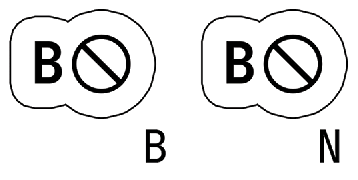
❏ Press a key labeled B🚫 (B or N) to turn bass kill mode on and off. You’ll see a red square replace the L on your mixer when this mode is turned on.
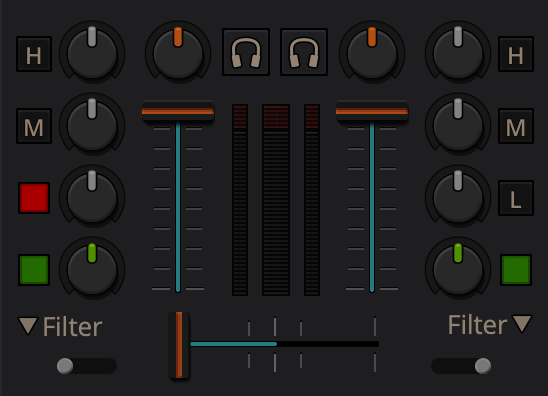
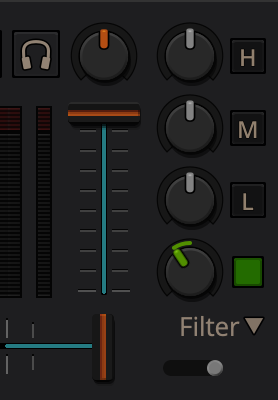
❏ Set the filter knob slightly to the left to create a low-pass effect. Now press an FX key (5 or 0) on your keyboard to turn it on and off. Click on Filter ▼, to see a dropdown menu of other effects.

❏ Optional: If you have an external sound card for your computer (example below), you can connect headphones and use them to help you DJ. If you have one, connect it to your computer now and reopen Mixxx.
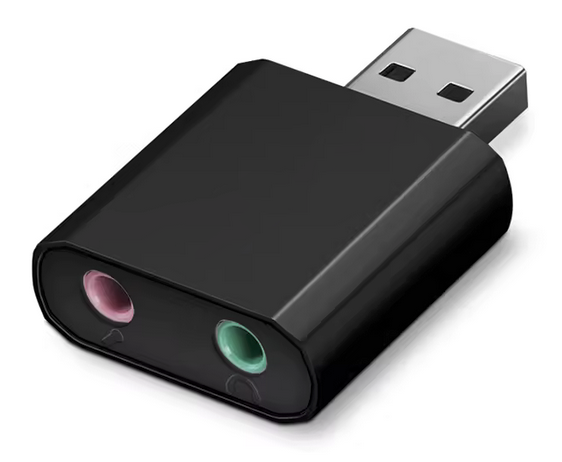
Go to Mixxx > Preferences in the menu bar to open the preferences. Under the Sound Hardware panel, scroll down to the list of output devices. In the dropdown menu next to Headphones, select your sound card. Then click OK to save and close the preferences.
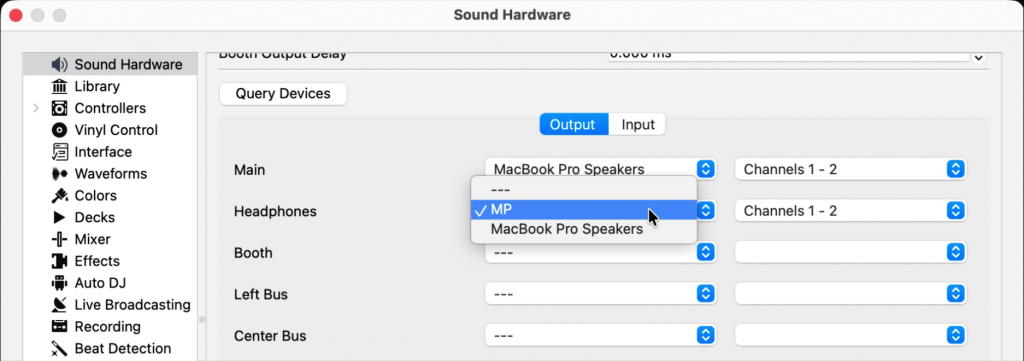
Now you can use the headphone keys (T and Y) to play a track through the headphones even if it isn’t playing through the speakers. Very useful!

❏ When you’re selecting the next track, you may find it helpful to listen to a few seconds to remind yourself what it is. Use the up and down arrows to select a track in the library window, then press the preview key (P) to play a preview in the headphones.

❏ While one of the tracks is paused, click and drag the waveform to line up the blue center cursor with one of the peaks in the audio. Press a Cue key (F or ;) to set a cue point.

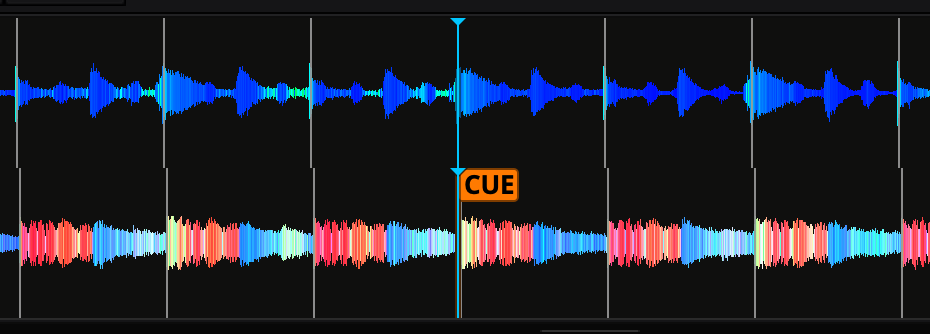
❏ Next, press the same cue key you used in the last step to start playing the audio from the point you chose.
When you lift the key, the audio will stop. If you hold down the cue key and press the play button for the same deck (D or L), the music will keep playing.
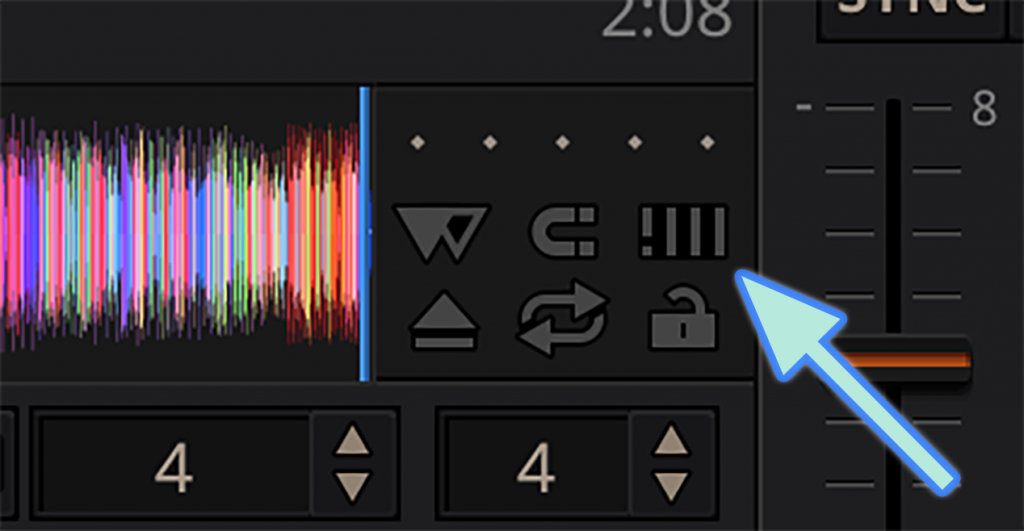
❏ Mixxx is very good at detecting a track’s tempo in beats per minute (BPM), but it occasionally makes mistakes identifying where the beats actually fall. If a track’s beatgrid markers are in the wrong place, first pause the track (D or L). Then click and drag the waveform until the blue center cursor is at the start of a beat.

❏ Click the adjust beatgrid button on the mixer window to move the beatgrid.

There’s plenty more to learn, but we’ve covered the basic skills you’ll need to DJ a house party. Great job! Have fun!
If you want to go deeper, here’s a link to the official Mixxx manual:
https://manual.mixxx.org