DJing matters because it helps people come together and have a good time. With a little bit of music taste and a little bit of technical knowledge, you can help a room full of people have a fun night. It feels great.
You may have seen DJs using expensive tools like turntables, mixers, and table-sized controller units with spinning platters. If you’ve looked over a DJ’s shoulder, you’ve probably seen them using a super expensive piece of software. You may have even tried free DJ software in the past and decided it was too difficult/glitchy.
Well, now there’s MIXXX! It’s a free and open source DJ program that runs beautifully on macOS, Linux, and Windows. It supports a wide range of DJ controller devices, and it works with just about any audio format you can throw at it.
DJ controllers have gotten cheaper in recent years. But if you want to get started without one, you can use a regular QWERTY keyboard. We recommend printing the following labels on sticker paper, or you can get a vinyl sticker version from Iffy Books.

❏ Find a USB QWERTY keyboard with physical function keys: F1, F2, F3, etc.
❏ Print a sticker sheet on a sheet of Avery address labels, or get a vinyl sticker from Iffy Books.
❏ Apply stickers to your keyboard like so:
[image]
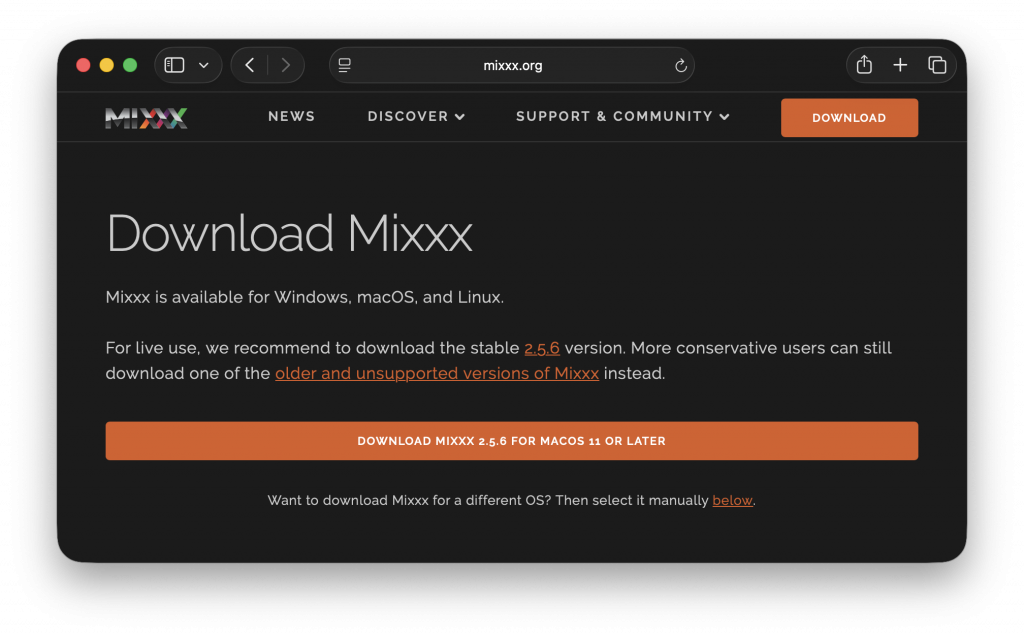
❏ Download and install MIXXX from https://mixxx.org/download.
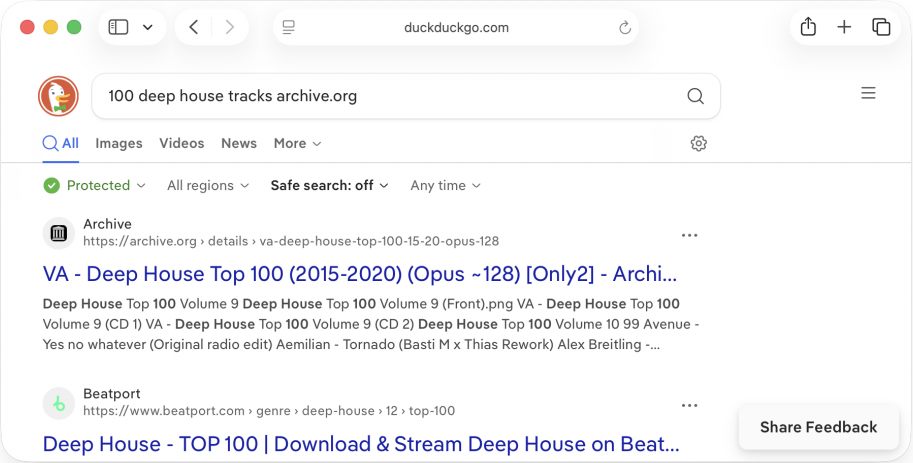
❏ Do a web search for the phrase 100 deep house tracks archive.org (without quotes) and click the first link.
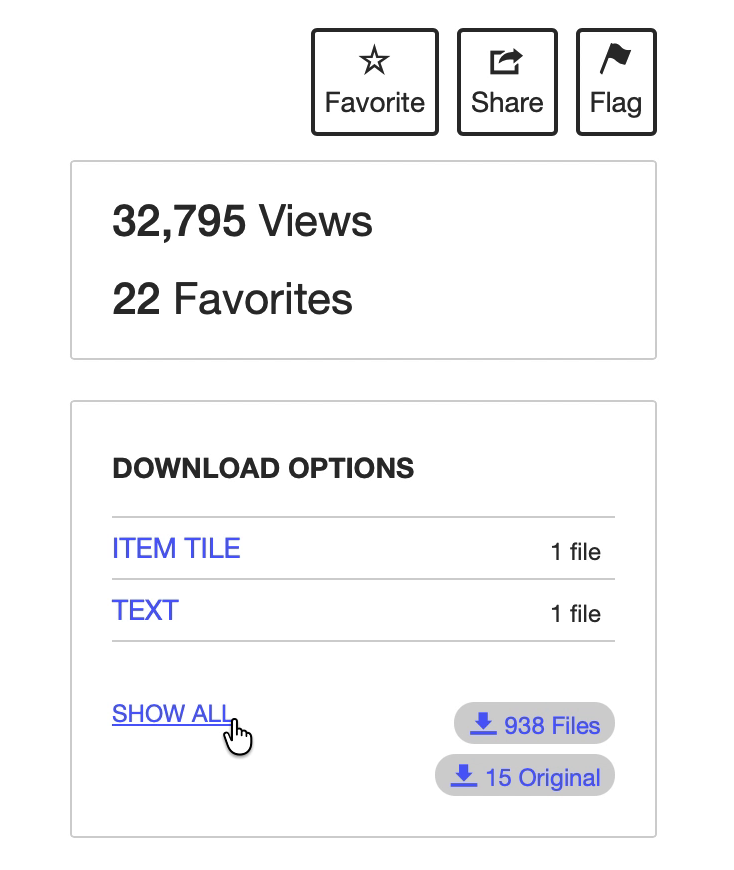
❏ Click the SHOW ALL link on the right side of the page.
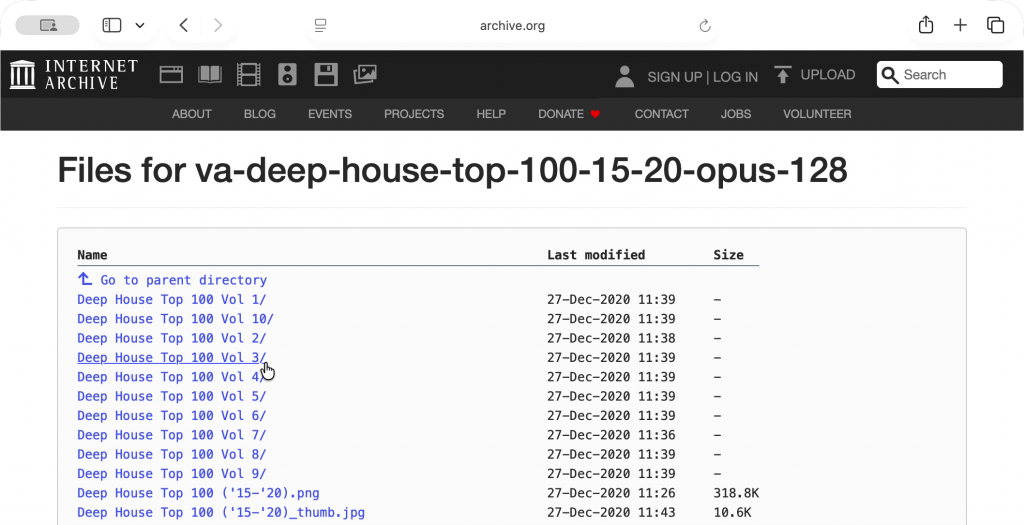
❏ Click on any directory (Vol. 1–10) and you’ll see a list of .opus audio files. Download 10 tracks from the collection, more or less at random.
Note: These files are compressed at 128 Kbps, so the quality is lower than DJs typically use. But they’re perfect for practice.
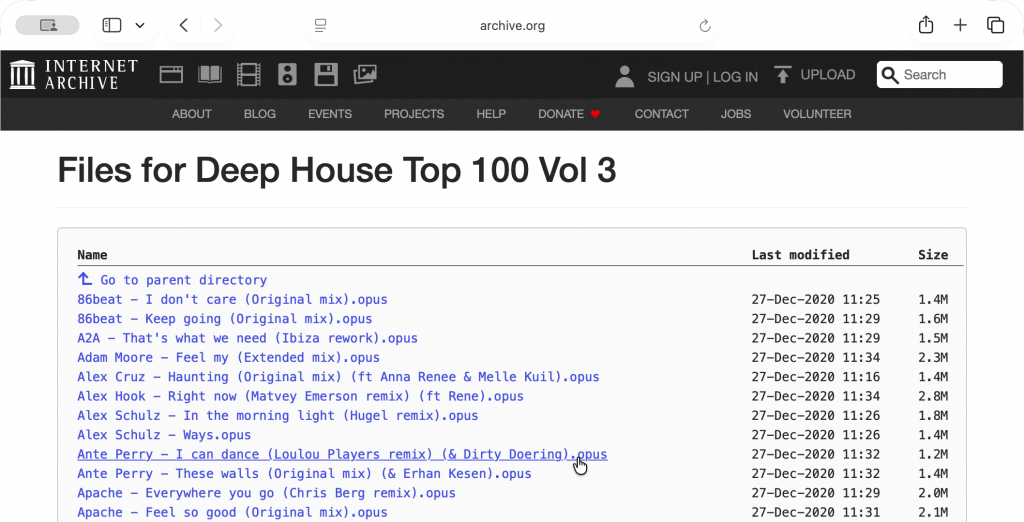
❏ Create a new directory called DJ_Tracks and move the .opus files you just downloaded to it.
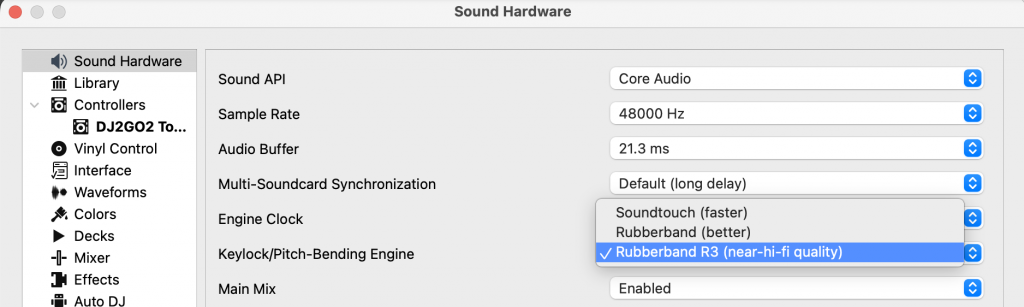
❏ Open the MIXXX preferences (Cmd+, or Ctrl+,). Under the Sound Hardware submenu, set the Engine Clock option to Rubberband R3 (near-hi-fi quality).
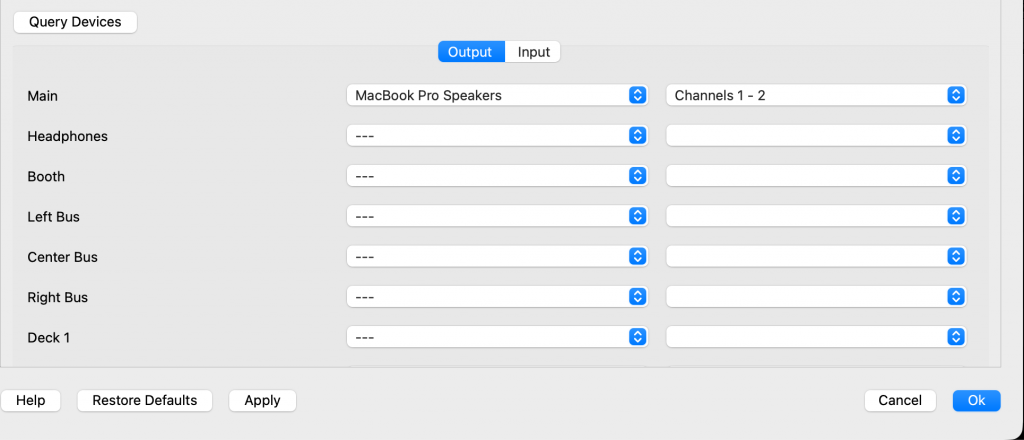
❏ Next, select an audio output device from the dropdown menu next to Main. You can use your laptop speakers for now, or plug in a pair of headphones. When you’re done, click Apply.
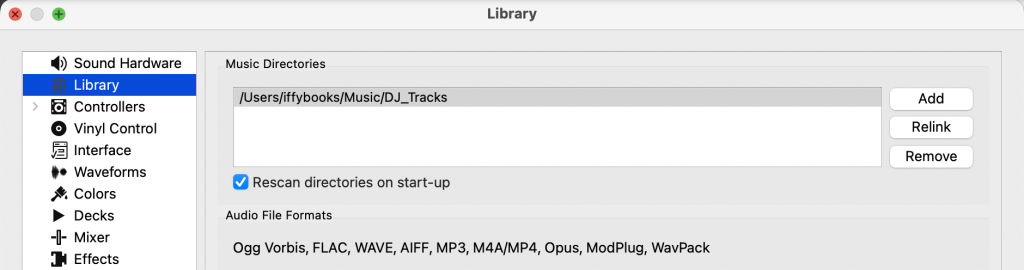
❏ Go to the Library submenu in the left column. Check the box next to Rescan directories on start-up. Next, click Add and select the DJ_Tracks directory you created earlier. Select any other directories on the list and click Remove.
❏ Click OK to exit the preferences.

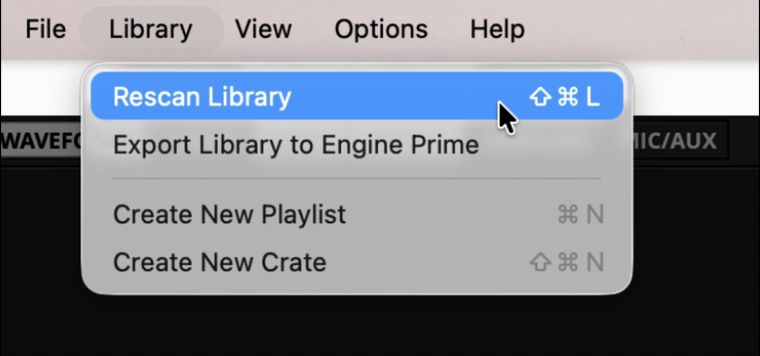
❏ In the menu bar, go to Library > Rescan Library to load the files in your DJ_Tracks directory into MIXXX. You can also use Cmd+Shift+L or Ctrl+Shift+L.
❏ Use the up and down arrows to select a track, then press Shift + left arrow to load it into deck 1. Press left play ▶ (D) to start the track.
❏ The CF keys (G and H) control the crossfader, represented by a horizontal slider in the middle of the window. Press the left CF button (G) several times to slide the crossfader all the way left.
When the crossfader is centered, you can hear sound from both decks equally. When it’s all the way left you’ll only hear deck 1, and when it’s all the way right you’ll only hear deck 2.
❏ Use the up and down arrows to select a track from the library. Then press Shift + right arrow to load it into deck 2.
❏ Tap sync (6) to make the tempo of track 2 match track 1.
❏ Wait until the end of a four-bar phrase, then press right play ▶ (L) to start the track in deck 2. The waveform for deck 2 will start moving, but you won’t hear anything because crossfader is all the way left.
❏ Press the right CF button (H) several times, transitioning gradually to the track in deck 2. Don’t worry if they aren’t perfectly in sync.
❏ Once the crossfader is all the way to the right, press left play ▶ (D) to pause the track in deck 1.
❏ Press right BPM- (F5) to slow the track down slightly, then press right BPM+ (F6) to speed it up.
❏ Load, sync, play, repeat.
❏ The keys labeled ◀◀◀ and ▶▶▶ adjust a track’s tempo temporarily. If two tracks’ beats are slightly misaligned, you can use these to nudge one into place. Press Shift simultaneously to make a small adjustment.
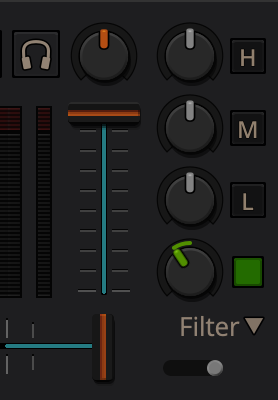
❏ Press a key labeled B🚫 to turn “bass kill” mode on and off. You’ll see a red square replace the L on your mixer when this mode is turned on.
❏ Set the filter knob slightly to the left to create a low-pass effect. Now press the FX button on your keyboard to turn it on and off.
❏ Headphones
❏ Cue instructions
❏ Fix misaligned beatgrid
❏
❏
❏